With a live slideshow, the photos your guests upload over the evening appear automatically and in real time on a projector or TV at the venue. So everyone sees the pictures during the celebration, not only later in the album.
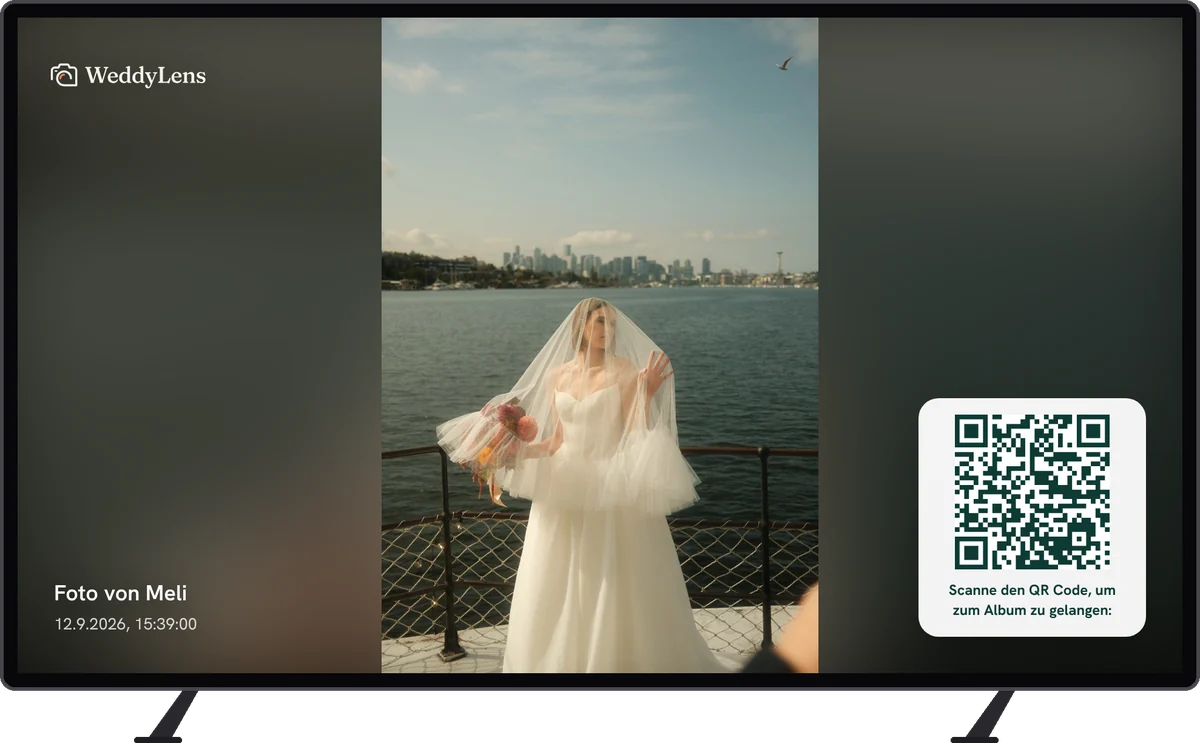
Everything is set up in 15 minutes, usually with hardware you already own or can hire cheaply.
What you need
At a minimum:
- A screen (TV or projector)
- A device for playback (laptop, tablet or smart TV browser)
- A stable internet connection at the venue (Wi-Fi or hotspot)
- Your WeddyLens album with slideshow mode switched on
Optional, but recommended:
- HDMI cable (5–10 m for a projector setup)
- Extension lead for power
- Speakers, if videos with sound will end up in the album too
Step 1: Set up the hardware
Projector setup (large halls):
- Place the projector centrally behind the guests, with the screen at the front. Make sure nobody is standing in front of it. A typical mistake is a DJ booth or a bar right in front of the projector.
- Brightness: a projector with at least 3,500 ANSI lumens also works in half-lit rooms. With normal banqueting hall lighting, it should rather be 5,000+ lumens.
- If you don’t have a projector: you can hire a projector and screen locally from around €80–150 per day.
TV setup (smaller venues):
- Set up a large smart TV (at least 55", ideally 65–75") in a central, clearly visible spot.
- The wall next to the dance floor or the area at the drinks reception works well.
Step 2: Connect the device
You need a device that shows the slideshow page in the browser. There are three ways to do this:
A) Laptop via HDMI cable (the most reliable)
- Connect the laptop to the projector or TV via HDMI.
- On the laptop, open the slideshow URL in full-screen mode (browser → F11 for full screen).
- Turn off the screen saver and power-saving mode (see below).
B) Smart TV browser directly
- Many smart TVs have a built-in browser. Enter the slideshow URL there, that’s all it takes.
- Careful: some of these browsers are sluggish. Test it at least once beforehand.
C) Streaming stick (Chromecast / Fire TV / Apple TV)
- You stream from your smartphone or laptop to the stick.
- This runs more smoothly than the smart TV browser, but needs working Wi-Fi.
Recommendation: If you want to play it safe, go for option A (laptop + HDMI). It always works, no matter how good the Wi-Fi is at the streaming device.
Step 3: Turn on the slideshow in the dashboard
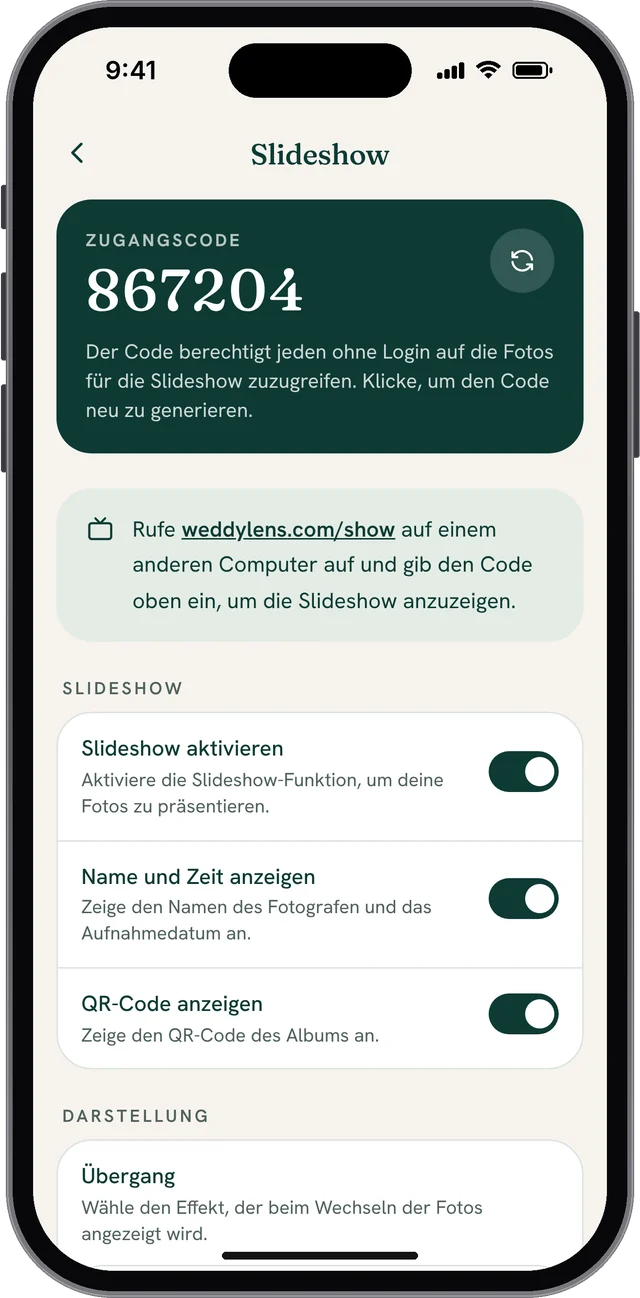
In your album’s dashboard, tap Slideshow and switch on Enable slideshow. Then you can set it up:
- Choose the transition: Fade (classic), Slide (slides in from the side, more dynamic) or Zoom (gentle zoom-in, modern).
- Choose the mode:
- Ascending order: the photos run chronologically in the order in which they were uploaded.
- Random order: the whole album is shuffled randomly.
- Latest uploaded photo: the newest uploads come first, and new photos are loaded automatically. This is the best mode for the live slideshow during the event.
- Show QR code: the album’s QR code appears in a corner of the slideshow. Guests who haven’t uploaded anything yet can scan it straight from the screen. We highly recommend this option.
- Show name and time: shows who took the photo and when. Whether you want this is a matter of taste.
- Optionally, you can limit the slideshow to certain folders if only a selection should be shown.
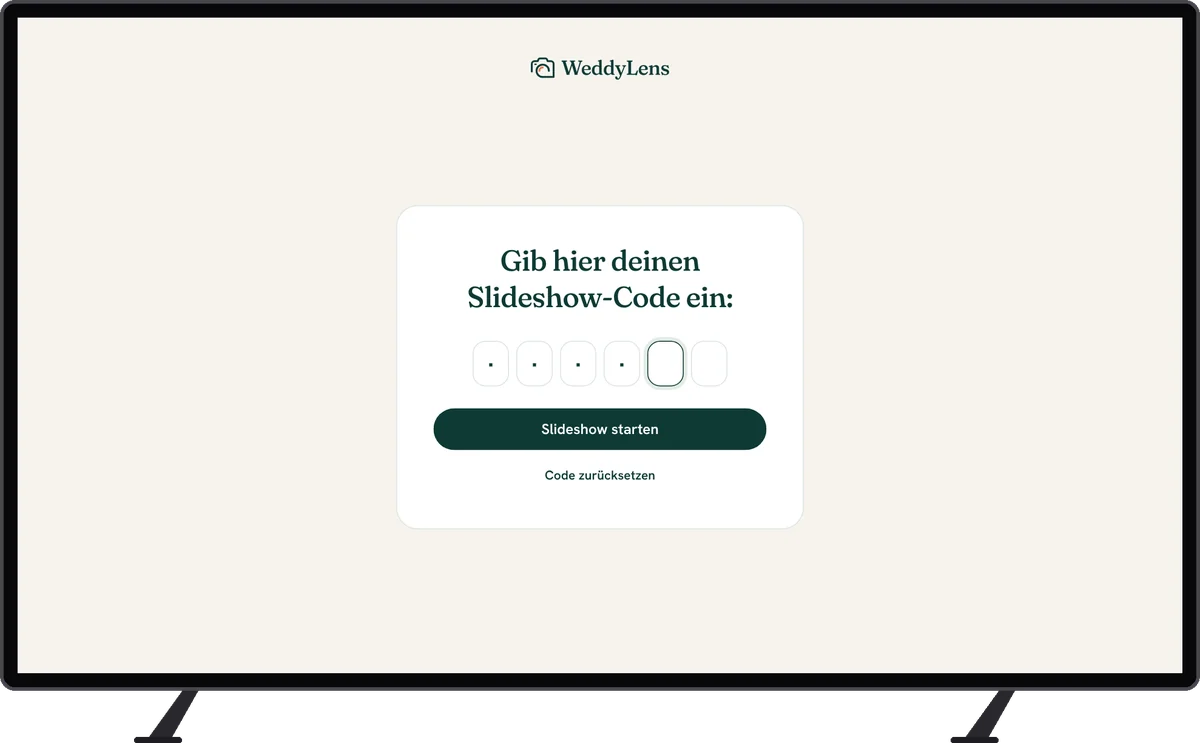
As soon as the slideshow is switched on, you’ll see a 6-digit access code at the top. On the device that is to show the slideshow, open weddylens.com/show and enter the code. No login is needed there.
Step 4: Full screen & power-saving mode
So that the slideshow runs undisturbed all evening:
On the laptop:
- Switch the browser to full screen (F11 / Cmd+Ctrl+F).
- Turn off power-saving mode, otherwise the screen will dim after 5 minutes.
- macOS: System Settings → Battery → “Turn display off after: Never” (for the duration of the event).
- Windows: Power Options → “Turn off the display: Never”.
- Turn off the screen saver.
- If the mouse pointer is visible, don’t move the mouse for 1 minute. In full-screen mode, it then disappears automatically.
On the smart TV / streaming stick:
- Switch off the power-saving option or auto-off.
- Some TVs switch themselves off after a fixed number of hours, even while something is playing. Check this beforehand.
Step 5: Test before the guests arrive
Do a complete test at least one hour before the start:
- Is the slideshow running in full screen?
- Are the projector or TV in focus and correctly aligned?
- Upload a test photo yourself. Does it appear after a few seconds?
- Is the internet stable? If not, prepare a hotspot from your smartphone as a backup.
Common problems & solutions
The slideshow doesn’t load new photos. → Check the Wi-Fi connection. In Latest uploaded photo mode, new pictures are added automatically, but this only works with an active internet connection.
Pictures are the wrong way round. → Smartphone photos are automatically shown the right way up. If a picture is still rotated, this is usually due to faulty EXIF data during upload. In that case, clear the browser cache and reload the slideshow.
The projector is too dark. → Dim the lights in the room if possible, or hire a projector with a higher lumen rating.
Guests aren’t uploading anything. → Switch on Show QR code in the slideshow settings. Then the code can be scanned straight from the screen. Challenge cards on the tables also help.
Sound problems with videos. → Check whether the HDMI cable also carries sound (some older projectors have separate audio inputs). Check the volume on the laptop and on the projector or TV.
The screen suddenly goes off. → Then power-saving mode was still active. Switch it off straight away and reopen the slideshow.
Bonus: several screens at the same time
The slideshow can run on several devices at the same time. Just enter the same slideshow code on each device. This way, you can run a large projector in the banqueting hall and a TV at the drinks reception at the same time, for example.
What the slideshow means for your wedding
With the live slideshow, collecting photos becomes part of the evening:
- Guests see their own pictures pop up and then upload more.
- Funny moments are seen by the whole room, not just the few people at the table in question.
- The atmosphere changes: you celebrate the moment together instead of just taking photos for the memories.